

Hearing, Hearing Aid, Hearing Care Tips, Signia, Signia Products
How to Pair Signia Hearing Aids with Your Android Phone: Step-by-Step Guide
May
Connecting the Signia hearing aids app to an Android phone involves enabling Bluetooth, preparing your hearing aids to enter pairing mode, and completing the connection through your phone’s Bluetooth settings. Once paired, you can stream audio, control settings remotely, and receive notifications directly through your hearing aids. This guide covers every step, along with troubleshooting tips and the key benefits of staying connected.
Summary:If you just got a pair of Signia hearing aids and connected hearing aids to an Android phone, you are closer than you think. The process is straightforward, takes just a few minutes, and once it is done, your hearing experience changes completely. You can stream calls and music directly into your ears, adjust your settings without touching your hearing aids, and stay connected throughout your day. This guide walks you through exactly how to do it, plus what to do if something does not go as planned.
Key Takeaways:
- Signia hearing aids pair with Android phones through standard Bluetooth settings in just a few steps.
- You need to restart your hearing aids to activate pairing mode before your phone can detect them.
- Once connected, you can stream calls, music, and alerts directly into your hearing aids.
- The Signia app gives you full remote control over volume, programs, and personalised settings.
- Most connection problems are fixed by restarting the hearing aids or toggling Bluetooth off and on.
Table of Contents
Why Connecting Your Signia Hearing Aids to Android Matters
Signia is well known for producing hearing aids that deliver naturally sounding audio, a significant improvement over older devices that often distorted sound rather than clarifying it. Models like the Signia Silk, Signia Pure, Signia Motion, and Signia Styletto are all built with modern connectivity in mind.
Connecting hearing aids to an Android phone is not just a convenience feature. It transforms how you use your hearing aids every single day. Calls route directly into your ears. Music sounds cleaner. You stay in control without fumbling with tiny buttons. And through the Signia app, your audiologist can even make remote adjustments without you needing to visit Ear Solutions.
The setup itself takes only a few minutes when you follow the right sequence.
Step One: Enable Bluetooth on Your Android Phone
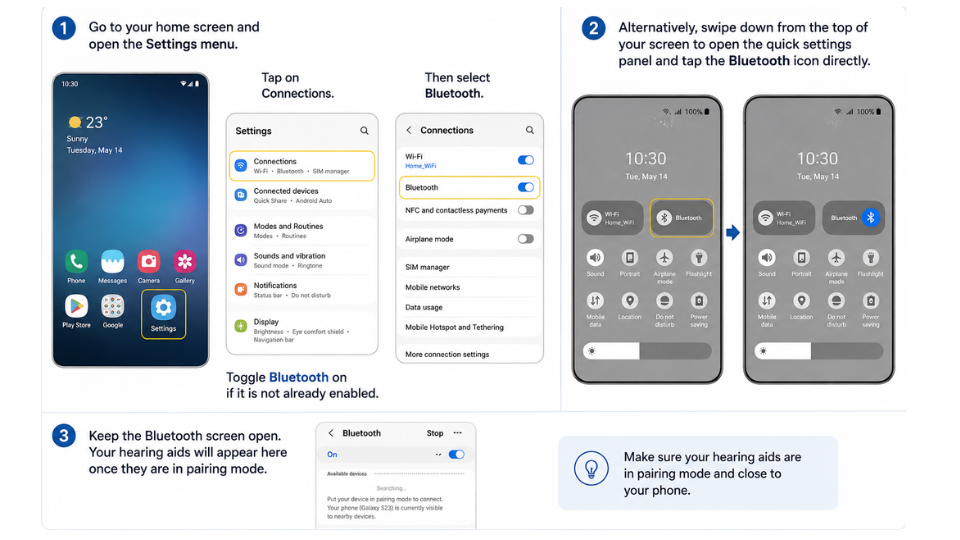
Go to your home screen and open the settings menu. Tap on Connections, then select Bluetooth. Toggle Bluetooth on if it is not already enabled.
Alternatively, swipe down from the top of your screen to open the quick settings panel and tap the Bluetooth icon directly.
Keep the Bluetooth screen open. Your hearing aids will appear here once they are in pairing mode.
Step Two: Prepare Your Signia Hearing Aids
This step is what most people miss while connecting hearing aids to an Android phone, and it is the reason pairing fails more often than not. Your hearing aids need to be restarted to enter pairing mode.
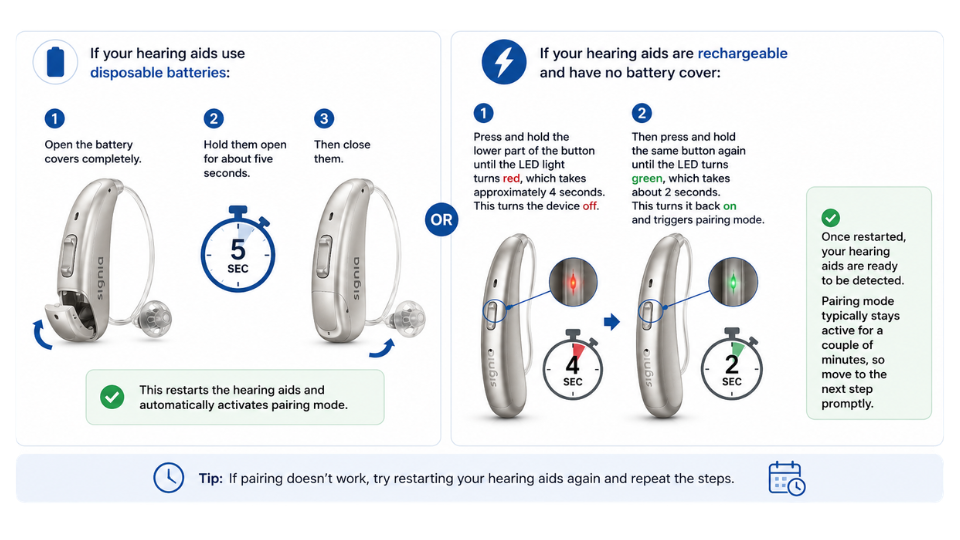
If your hearing aids use disposable batteries: Open the battery covers completely and hold them open for about five seconds. Then close them. This restarts the hearing aids and automatically activates pairing mode.
If your hearing aids are rechargeable and have no battery cover: Press and hold the lower part of the button on the hearing aid until the LED light turns red, which takes approximately four seconds. This turns the device off. Then press and hold the same button again until the LED turns green, which takes about two seconds. This turns it back on and triggers pairing mode.
Once restarted, your hearing aids are ready to be detected. Pairing mode typically stays active for a couple of minutes, so move to the next step promptly.
Step Three: Pair Your Hearing Aids Through Bluetooth Settings
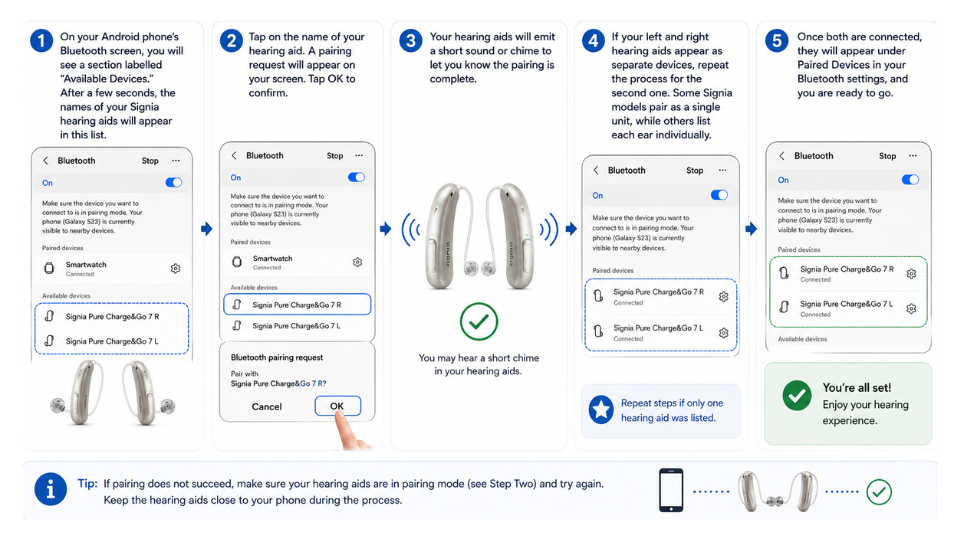
Signia Bluetooth Connection Guide: On your Android phone’s Bluetooth screen, you will see a section labelled “Available Devices.” After a few seconds, the names of your Signia hearing aids will appear in this list.
Tap on the name of your hearing aid. A pairing request will appear on your screen. Tap OK to confirm.
Your hearing aids will emit a short sound or chime to let you know the pairing is complete.
If your left and right hearing aids appear as separate devices, repeat the process for the second one. Some Signia models pair as a single unit, while others list each ear individually.
Once both are connected, they will appear under Paired Devices in your Bluetooth settings, and you are ready to go.
What You Can Do Once Connected
Pairing your Signia hearing aids to your Android phone opens up a range of features that go well beyond basic hearing assistance.
Direct Audio Streaming: Phone calls, music, navigation instructions, and video audio all stream directly into your hearing aids for a clearer, more immersive listening experience.
Remote Control via the Signia App: Download the Signia App from the Google Play Store to adjust volume, switch between listening programs, and customise settings from your phone. No need to touch your hearing aids at all.
Notifications and Alerts: Receive notifications directly through your hearing aids so you never miss a call, message, or reminder, even in noisy environments.
Troubleshooting Common Issues
Hearing aids not appearing in the Available Devices list: Your hearing aids may have exited pairing mode. Restart them again using the steps in Step Two and check your Bluetooth screen immediately after.
Pairing request not appearing: Make sure your phone’s Bluetooth is fully on and you are within close range of your hearing aids during the pairing process. Distance and interference from other devices can disrupt detection.
Connection dropping after pairing: Check that your phone’s battery saver mode is not restricting Bluetooth in the background. Go to Settings, then Battery, and adjust the restrictions if needed.
Only one hearing aid is connecting: Restart both hearing aids at the same time and attempt the pairing process again simultaneously for both devices.
General connection failure: Restart both your Android phone and your hearing aids. If the problem continues, go to your Bluetooth settings, select your hearing aid from the paired list, tap Forget, and start the pairing process from the beginning.
Conclusion:
Connecting your Signia hearing aids to your Android phone is one of the simplest upgrades you can make to your daily hearing experience. A few minutes of setup give you streaming, remote control, and full app access to make your hearing aids significantly more useful and flexible.
Follow the three steps above in order, keep your devices close together during pairing, and restart your hearing aids if anything does not go as expected. If you continue to have trouble, Ear Solutions or Signia’s customer support team can help you work through any model-specific issues.
FAQs
Bluetooth pairing itself does not require an app. However, downloading the free Signia app from the Google Play Store gives you full control over your settings, programs, and streaming options.
The most common reason is that the hearing aids are no longer in pairing mode. Restart them by opening and closing the battery covers or using the button method, then check your Bluetooth screen immediately.
Signia hearing aids can store multiple paired devices, but they typically connect to only one phone at a time. To switch, disconnect from the current phone and connect to the new one.
Active streaming does use more power than standard use. If battery life is a concern, turn off streaming through the Signia app when you are not actively using it.
Restart both devices, forget the hearing aids from your Bluetooth list, and repeat the full pairing process. If the issue persists, contact your audiologist or Signia support for model-specific guidance.

Prerna Singh
Audiologist, Ear Solutions
Prerna Singh is an Audiologist at Ear Solutions, focused on delivering compassionate, patient-centric hearing care. She works closely with individuals to understand their hearing concerns and guide them toward practical, technology-driven solutions that improve everyday communication and confidence.
At Ear Solutions, Prerna supports the organization’s long-standing mission of transforming lives through better hearing. She is committed to hearing awareness, accurate assessments, and continuous patient support-ensuring every individual receives the care they need to hear better and live better, in line with the vision of #AbSabSunenge.